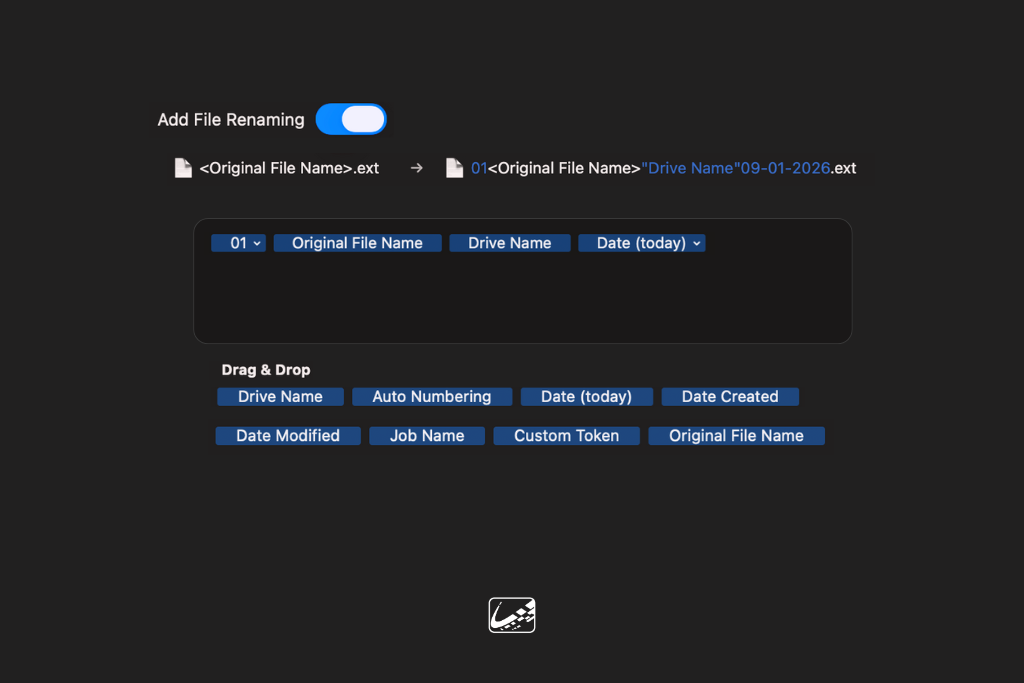
File naming is one of those problems that often gets pushed downstream. Media is offloaded quickly on set, but the cleanup happens later. Clips get renamed in Finder, in post tools, or during handoff. By the time files reach editorial, naming inconsistencies have already crept in and fixing them costs time.
With the latest updates to ShotPut Pro 2026.1 and ShotPut Studio 2.3, dynamic file renaming brings file organization forward into the ingest process itself. Files can now be renamed automatically during offload using flexible rules and familiar tokens, ensuring media is structured correctly the moment it lands.
This removes manual cleanup steps and helps keep handoffs consistent from set to post.
What Is Dynamic File Renaming?
Dynamic file renaming allows you to rename files as they are copied, using the same token based logic already available for custom folder structures.
Instead of accepting camera generated file names or renaming files later, you can now define naming rules directly inside your ShotPut preset or job. As media is offloaded, ShotPut applies those rules automatically and outputs files with the correct names.
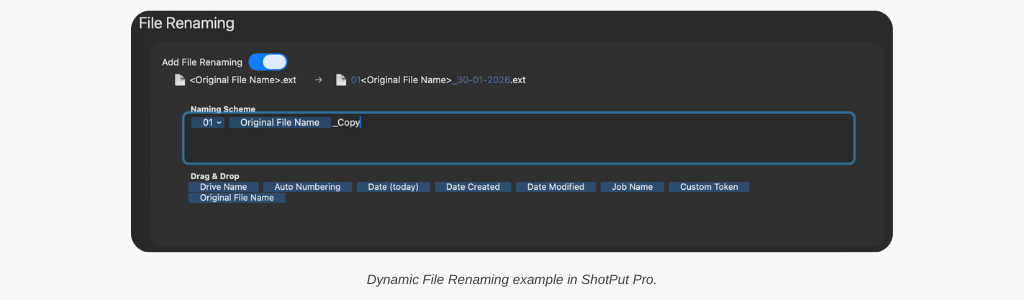
To support flexible workflows, ShotPut includes a new token called Original File Name. This allows you to preserve the camera file name while still adding context such as project name, date, reel, or custom identifiers.
You can combine Original File Name with existing tokens including date based tokens and Custom Tokens to build naming patterns that match your delivery standards.
A live preview shows exactly how files will be renamed before the job runs.
The Problems This Solves
Dynamic file renaming is designed to address common pain points that show up on nearly every production.
- Manual renaming takes time and is easy to get wrong, especially under pressure on set. Small inconsistencies in file names can multiply quickly across cards and shooting days.
- Camera generated file names often lack context. Editorial teams may receive files with identical names across multiple cards or days, leading to confusion or relinking issues later.
- Renaming after ingest introduces risk. Once files are copied and verified, changing names manually can break references or lead to mismatches between reports and delivered media.
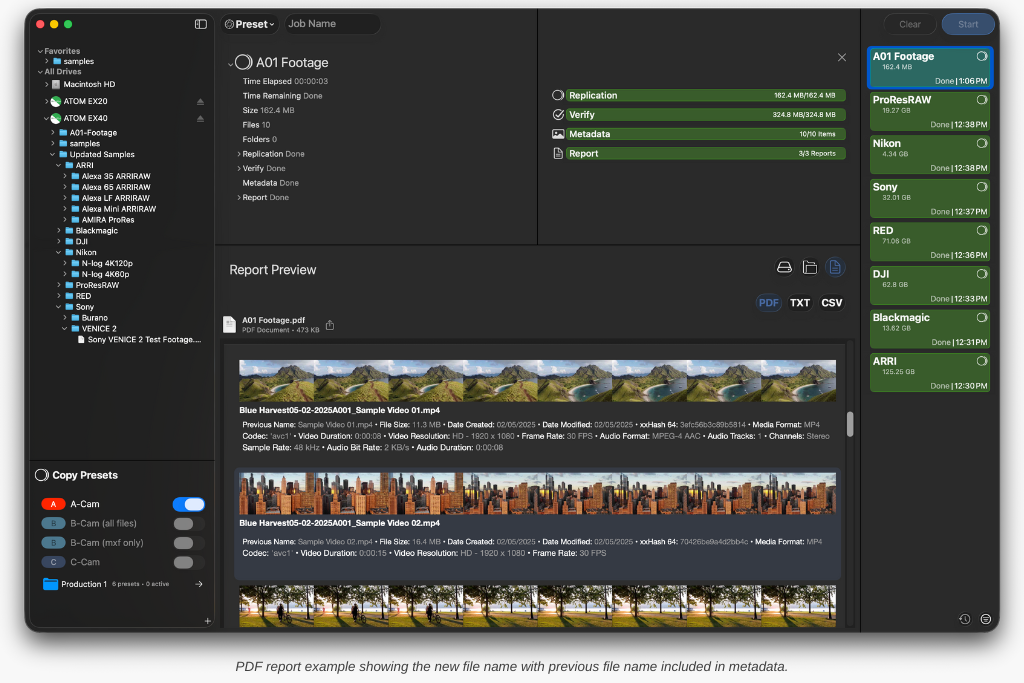
By handling file renaming during offload, ShotPut ensures files are consistently named, traceable, and ready for post without additional steps.
A Real World Workflow Example
Imagine a DIT working on a multi day shoot with multiple cameras, all recording MXF files that reset their clip counters daily.
Without dynamic renaming, every shooting day produces files with overlapping names. Editorial later has to rely on folder paths or manual renaming to keep clips straight.
With dynamic file renaming, the DIT sets a pattern like:
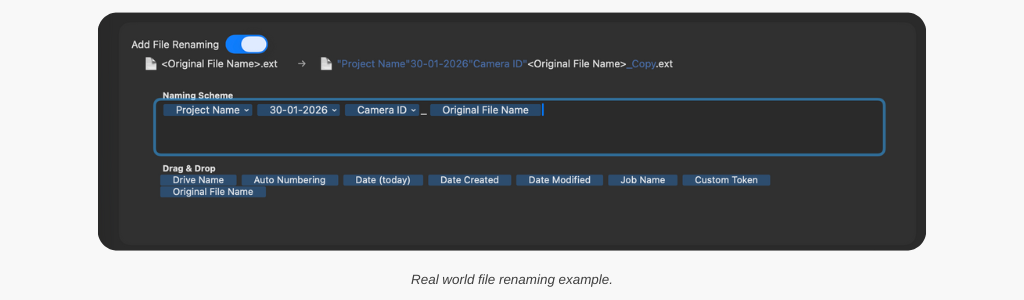
As each card is offloaded, ShotPut automatically applies the naming rule. Files arrive already labeled with project context while still preserving the original camera name for traceability.
The result is media that is immediately usable by post, with no additional renaming or cleanup required.
Built to Work with Existing Folder Structures
Dynamic file renaming is designed to complement, not replace, custom folder structures.
All of the familiar tools are still available. You can drag tokens into place, add custom text, and use autocomplete to build both folder paths and file names that work together.
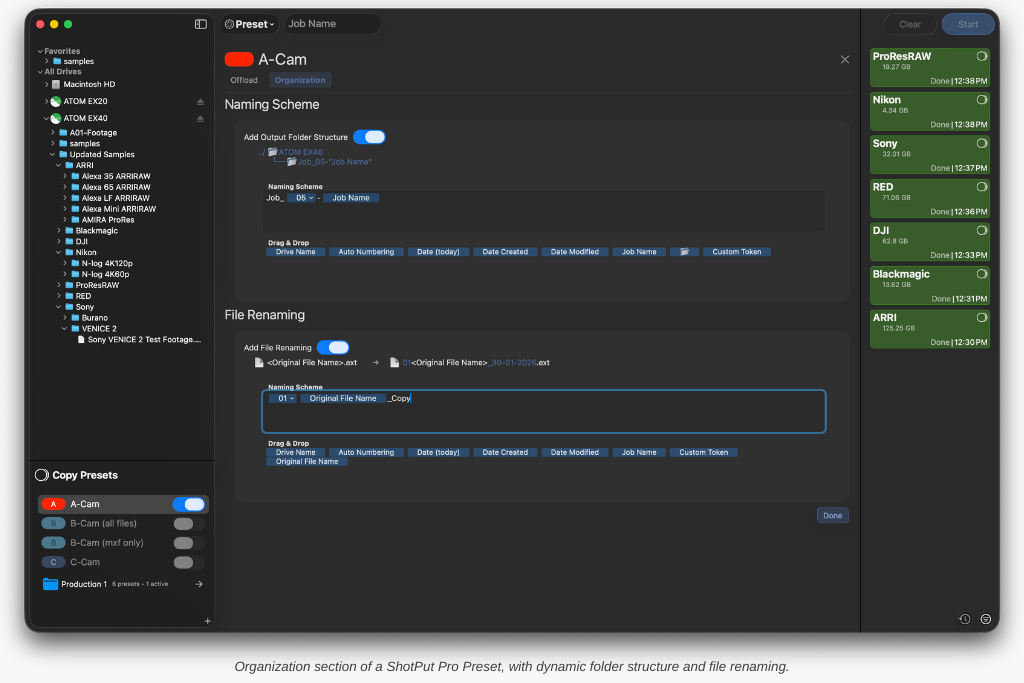
This makes it easy to enforce consistent structure and naming across productions while still adapting presets for different shows or clients.
[Netflix quote goes here]
Start Using Dynamic File Renaming Today
Dynamic file renaming helps reduce cleanup, eliminate inconsistencies, and deliver media that is ready for post the moment it finishes copying.
Ready to give it a try? If your ShotPut license is active and under maintenance, the update is already waiting for you. Just open the app and select ‘Check for Updates.’
If your maintenance has expired, updating is easy. Log in to your account, navigate to View Licenses > Update, and choose either a one-time 12-month update plan ($70) or enroll in automatic updates ($59/year) to always stay current.