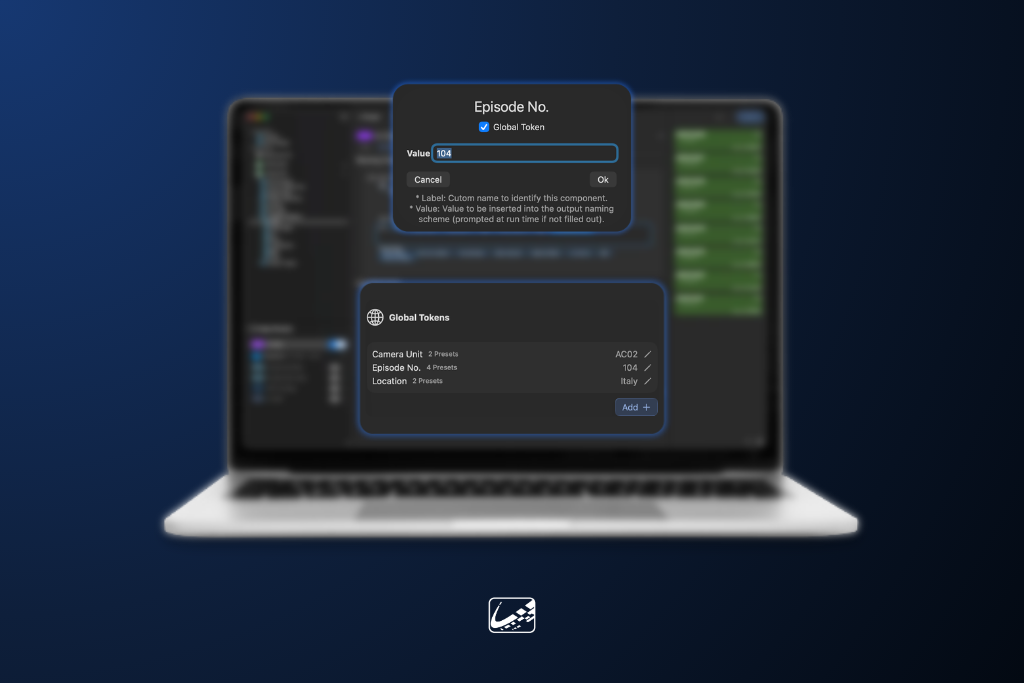
In production, small changes rarely stay small. If an episode number changes or a unit shifts to a new naming convention halfway through the day, suddenly, what should have been a quick update turns into manually editing dozens of Presets before the next card lands on your cart.
For teams managing large numbers of Presets in ShotPut Pro, those repetitive updates can add unnecessary friction to an already fast-moving workflow. That is exactly why we added Global Custom Tokens.
What Are Custom Tokens?
Custom Tokens are naming fields that prompt for user input when a copy job begins. They are commonly used for information that changes frequently throughout production, such as:
- Episode Number
- Camera Unit
- Location
They provide flexibility without requiring users to constantly rebuild naming structures. Instead of hardcoding metadata into a Preset, Custom Tokens allow users to enter the necessary information at job start.
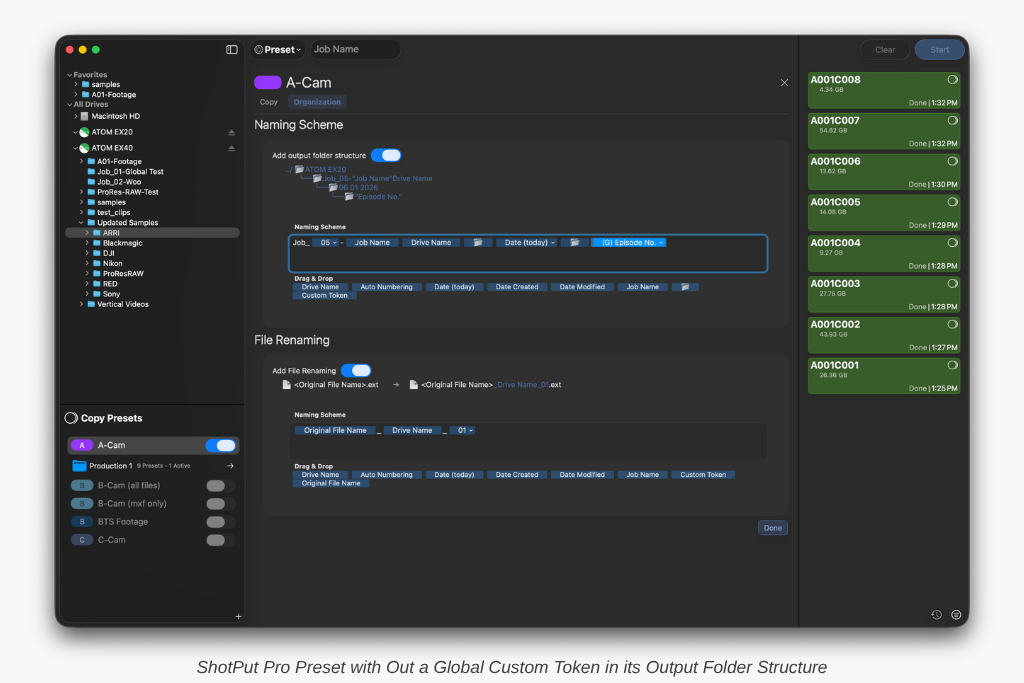
For many productions, however, the challenge is not entering information once but keeping that information synchronized across dozens of Presets.
The Problem With Large Preset Libraries
DITs, loaders, media managers, and post teams often maintain separate Presets for different cameras, destinations, workflows, and deliverables. Because of this, it is not uncommon for a production to have 20+ active Presets at a time.
Now imagine an episodic workflow where production moves from Episode 101 to Episode 102 midway through the day. Without centralized token management, every Preset containing that episode number needs to be updated individually. Not only is that tedious, but it also increases the likelihood of mistakes. Missing even a single Preset can create inconsistencies in folder structures, reports, or downstream workflows.
Introducing Global Custom Tokens
Global Custom Tokens solve this problem by allowing a single token to be shared across multiple Presets. Instead of every Preset maintaining its own isolated Custom Token value, Global Tokens remain linked. Updating the token once updates it everywhere it is used.
When you change Episode 101 to 102 in one location, every connected Preset immediately reflects the new value. This makes large-scale Preset management dramatically easier, especially for productions where metadata changes frequently throughout the day.
Built Directly Into the Naming Workflow
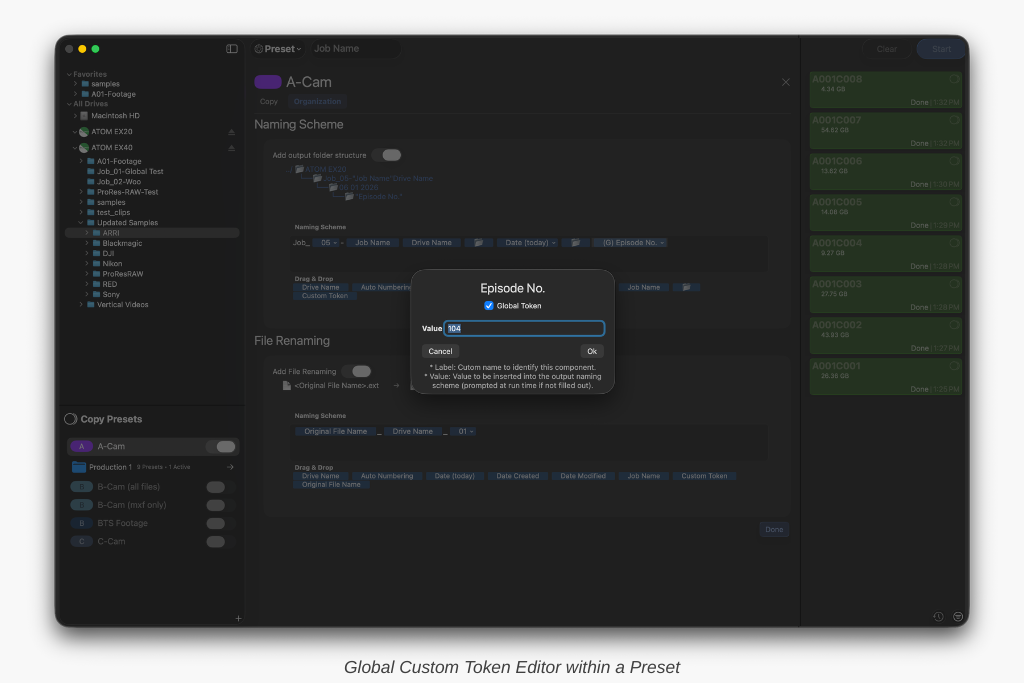
Creating a Global Custom Token starts the same way as creating a standard Custom Token. After adding a Custom Token to your Naming Scheme, users can open the token menu and either:
- Convert the token into a Global Token
- Select from an existing list of Global Tokens already in use
Once enabled, Global Tokens are identified with a simple “(G)” indicator beside the token name, making them easy to recognize while building or editing naming structures.
Centralized Management With the Global Custom Token Manager
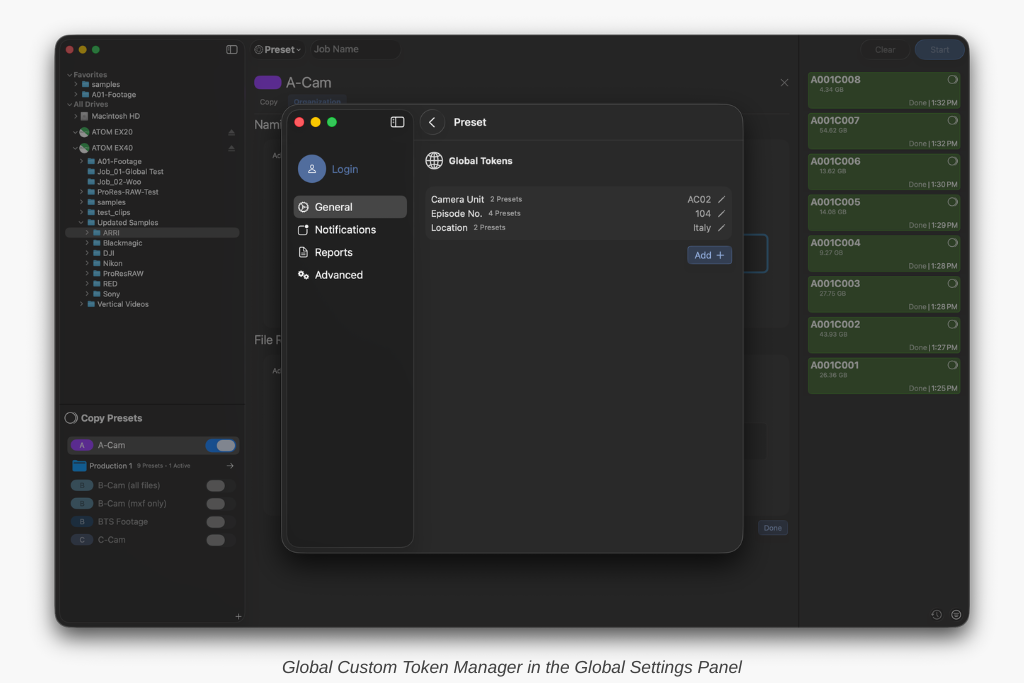
To make managing Global Tokens even easier, ShotPut Pro now includes a dedicated Global Custom Token Manager within Global Settings.
This centralized interface allows users to:
- View all existing Global Tokens
- See each token’s current value
- See how many Presets are using each token
- Edit token names and values
- Create entirely new Global Tokens
- Remove unused tokens
Most importantly, any edits made within the manager are automatically applied across every Preset using that token. For productions juggling multiple units, episodes, or constantly shifting metadata requirements, this creates a much more efficient way to maintain consistency across an entire workflow.
Built for Real Production Workflows
Global Custom Tokens are one of those features designed around the realities of production life. They remove repetitive tasks that slow crews down and create opportunities for error. So whether you are managing a large episodic production, maintaining separate Presets for multiple cameras, or simply trying to streamline day-to-day media management, Global Custom Tokens help keep your workflow organized, consistent, and easier to maintain.
Ready to give it a try? If your ShotPut license is active and under maintenance, the update is already waiting for you. Just open the app and select ‘Check for Updates.’ These updates are available in ShotPut Pro 2026.2.5.
If your maintenance has expired, updating is easy. Log in to your account, navigate to View Licenses > Update, and choose either a one-time 12-month update plan ($70) or enroll in automatic updates ($59/year) to always stay current.