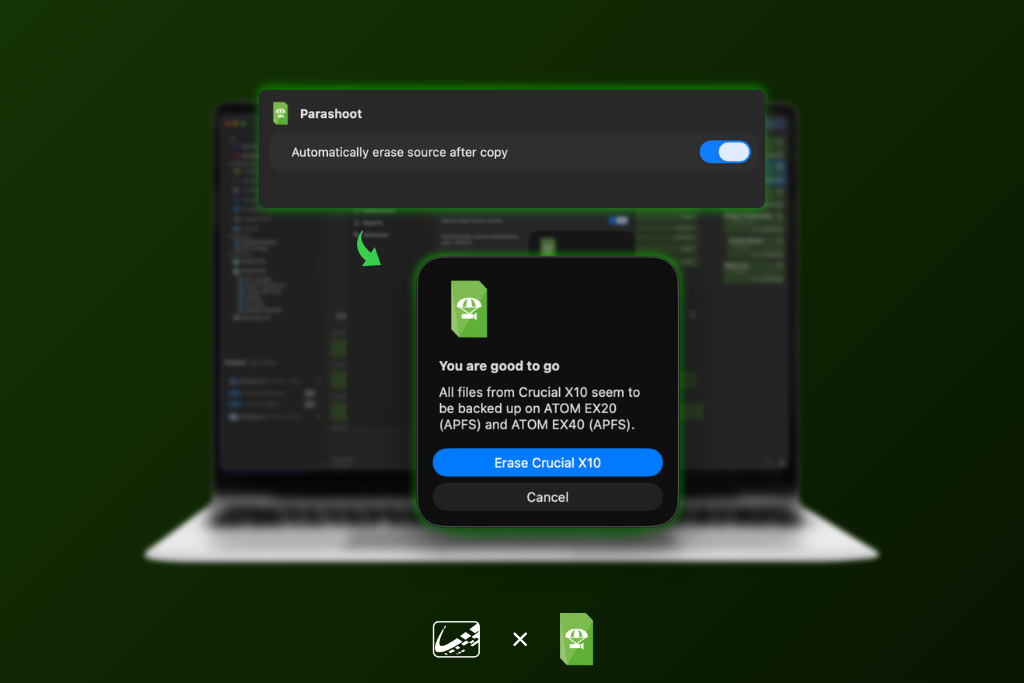
On set, knowing exactly where your media stands at any given moment is what keeps a shoot moving forward. For DITs and data wranglers, one of the smallest but most persistent friction points comes after the copy is complete: what happens to the card next?
With a new native integration between ShotPut Studio, ShotPut Pro, and Parashoot from Ottomatic, that step is no longer manual or uncertain.
One Less Manual Step, One More Layer of Confidence
Once a card has been offloaded and verified, the next step is simple in theory: erase it and send it back to camera. In practice, that step can introduce a surprising amount of overhead.
Manually erasing cards takes time, and on a busy set that time adds up. More importantly, it introduces another opportunity for human error. Forgetting to erase a card, erasing the wrong one, or creating uncertainty about whether a card is actually ready for reuse can all slow things down.
The Parashoot integration removes that uncertainty. Once enabled, ShotPut Studio and ShotPut Pro can automatically trigger Parashoot to erase source media immediately after a successful copy job. No extra steps. just a seamless continuation of the workflow you are already running.
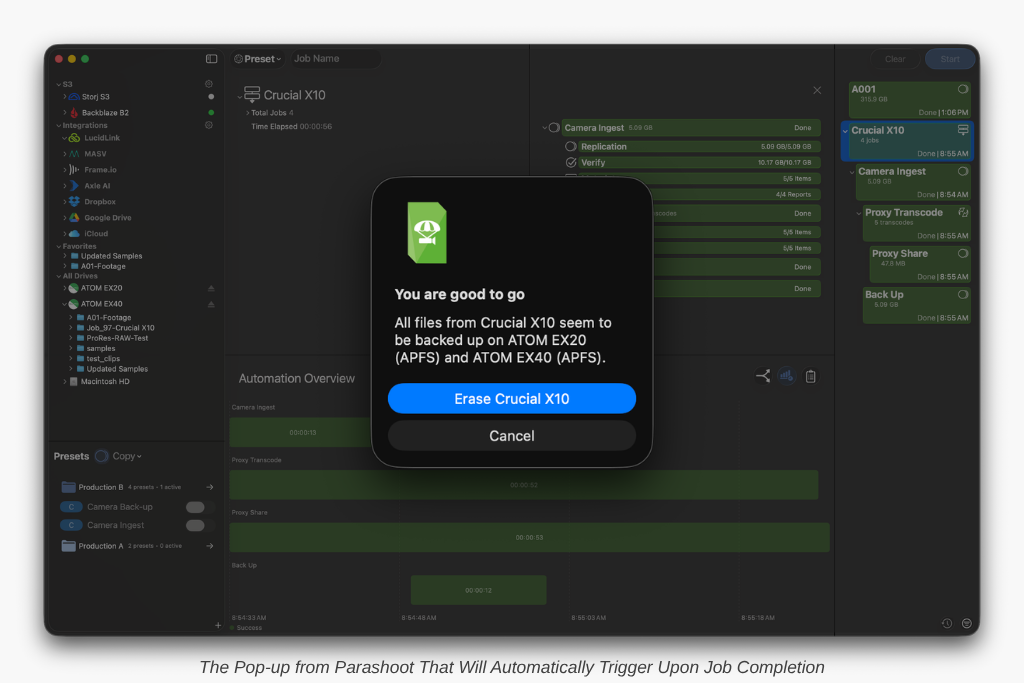
A Smarter Way to Signal Card Status
What makes Parashoot particularly compelling is not just that it erases cards but how it does it. A card erased with Parashoot is intentionally left in a state that clearly indicates it has already been offloaded and verified.
When that card returns to camera, the camera will require a format before recording can begin. This creates a natural checkpoint in the workflow:
- If a card has been erased with Parashoot, it must be formatted in-camera before use
- If a card inserted into camera already contains footage, it should immediately be checked and confirmed
This removes ambiguity from the process. Instead of relying on labels, memory, or communication across departments, the card itself becomes the signal. For teams moving quickly between camera, DIT cart, and back again, that kind of built-in clarity is invaluable.
Safe, Controlled Card Erasing
Under the hood, rather than performing a full wipe, Parashoot flips every bit in the first 2 MiB of the card. Every 0 becomes a 1, and every 1 becomes a 0. This destroys all file system information in a controlled and reversible way.
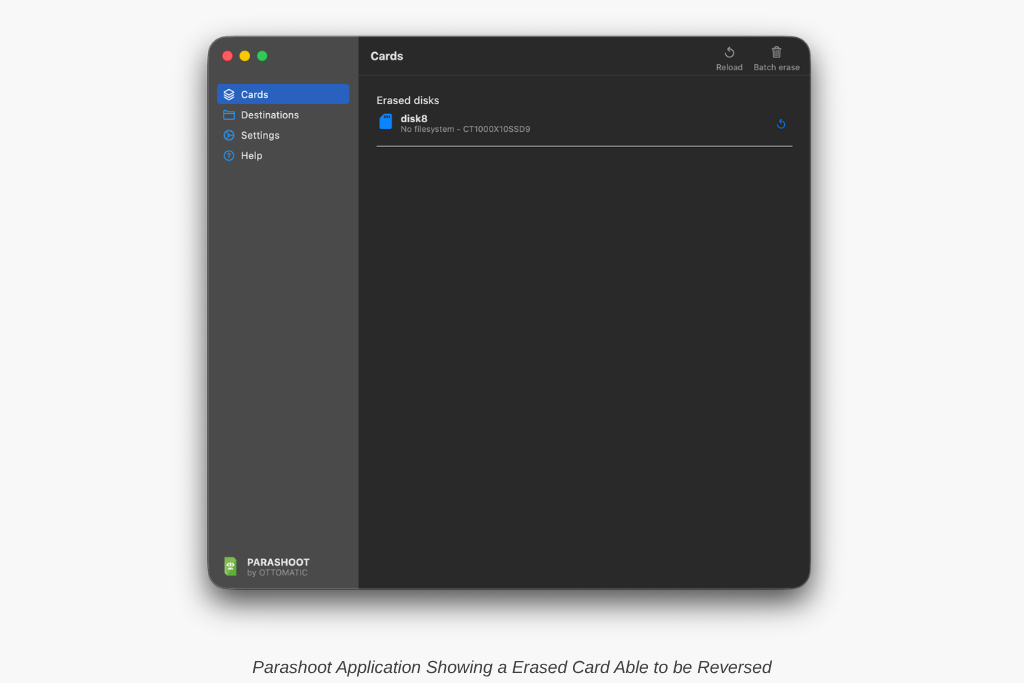
The result is a card that is:
- No longer readable by the camera or operating system
- Clearly marked as having been processed
- Ready to be reformatted in-camera before its next use
This approach keeps things fast on set while still ensuring that cards are properly reset before going back into rotation.
Built for Real On-Set Workflows
This integration is designed to fit naturally into the way DITs and data wranglers already work with no complicated setup or new process to learn. Simply download and launch Parashoot, then enable the “Automatically erase source after copy” option within ShotPut’s copy settings. From there, ShotPut will handle the rest, triggering Parashoot automatically once a job is complete.
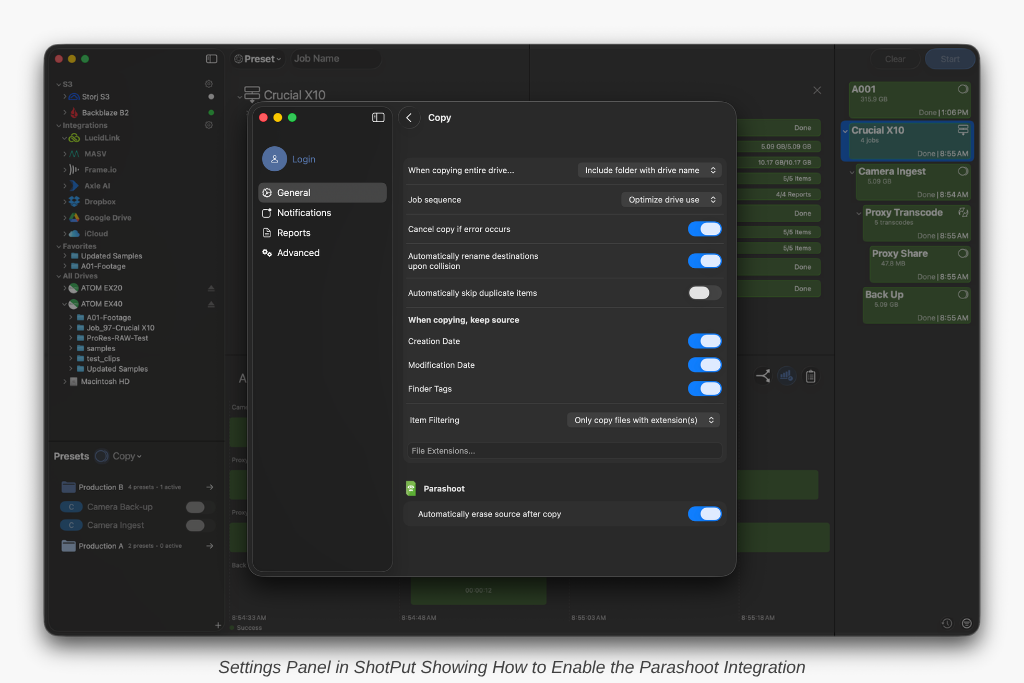
One important tip: make sure destinations are set within Parashoot so the integration can function as intended.
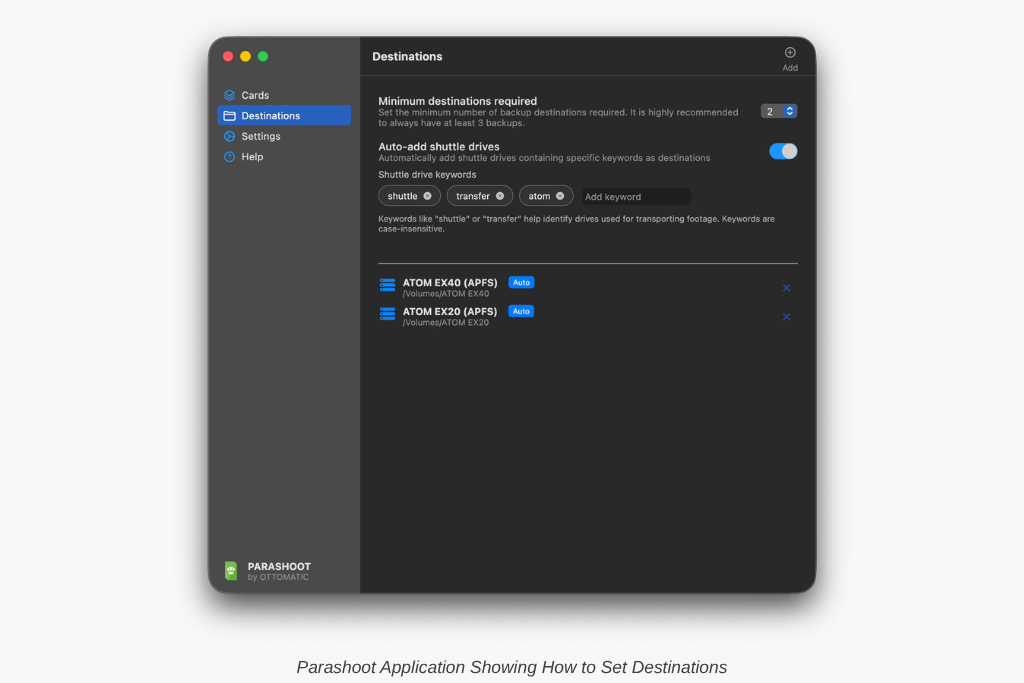
By combining ShotPut Studio and ShotPut Pro with Parashoot, you are making it more intentional, more transparent, and more reliable. On set, that kind of confidence goes a long way.
Also in This Update
Alongside the Parashoot integration, this update includes a couple of additional improvements designed to give you more flexibility in your workflow.
Faster Standalone Reports
You now have the option to turn off checksum generation when running reports with the Standalone Report Tool, helping speed up report creation if verification was already performed or isn’t needed.
New Contact Sheet Layout Option
A new simplified PDF report layout for Contact Sheets allows you to include only a thumbnail and file name for each asset. This is especially useful for stills workflows or quick visual references where minimal metadata is preferred.
Ready to give it a try? If your ShotPut license is active and under maintenance, the update is already waiting for you. Just open the app and select ‘Check for Updates.’ These updates are available in ShotPut Studio 2.3.10 and ShotPut Pro 2026.2.2.
If your maintenance has expired, updating is easy. Log in to your account, navigate to View Licenses > Update, and choose either a one-time 12-month update plan ($70 for Pro | $120 for Studio) or enroll in automatic updates ($59/year for Pro | $99/year for Studio) to always stay current.