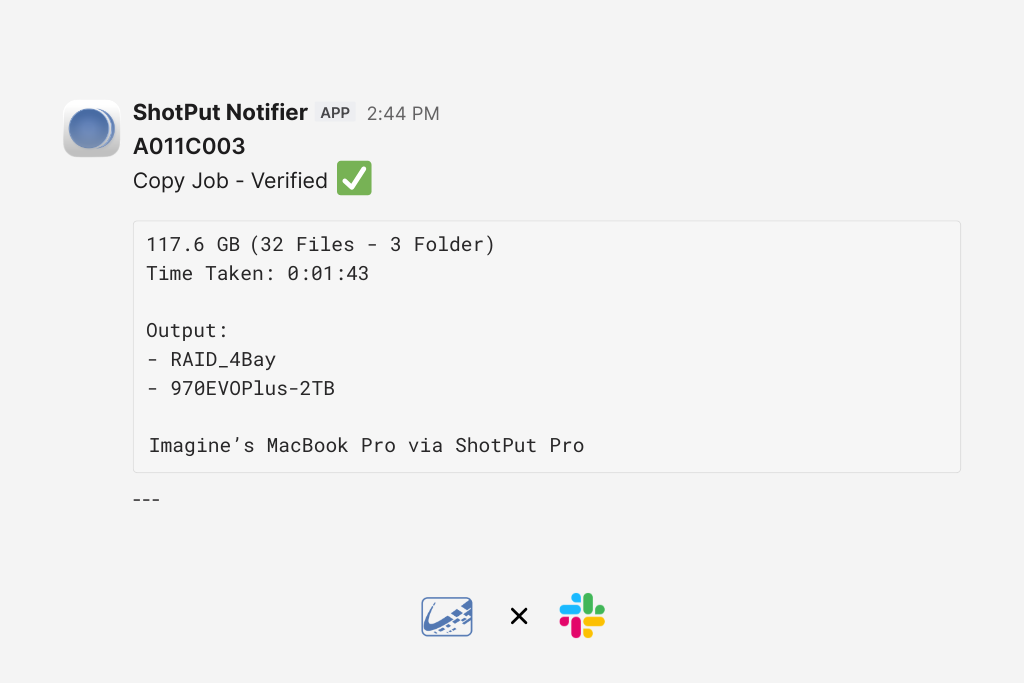
Modern media workflows rarely live on a single machine. A production crew may run multiple ingest stations throughout the day. Different members handle different jobs. Supervisors need confirmation that media was verified properly, delivered correctly, and completed without error. But visibility often stops at the workstation performing the job.
The latest update to ShotPut Studio introduces a new feature designed to extend that visibility: Slack Webhook notifications.
Slack Webhook Notifications
Available in ShotPut Studio 2.3.4 and ShotPut Pro 2026.1.3 (Mac)
ShotPut can now send automatic job notifications directly to Slack using Webhooks. With these enabled, notifications are triggered when a job completes, whether it is successfully verified, cancelled, or encounters an error. This applies across all job types.
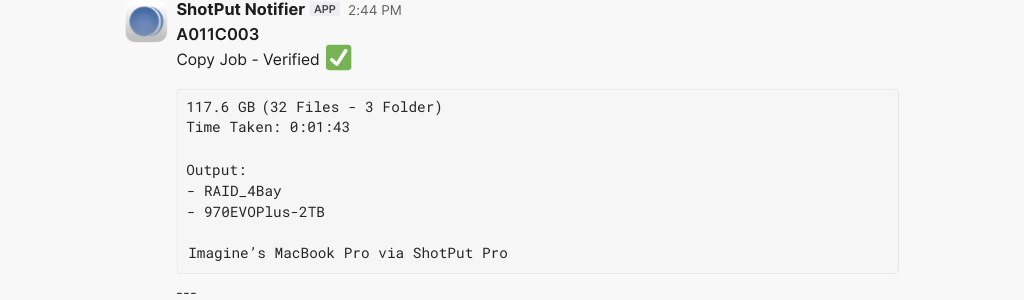
Each Slack message includes:
-
Job name
-
Job status (verified, cancelled, erred)
-
Total size
-
Total files and folders
-
Time to complete
-
Output destinations
-
Machine name used for the job
Webhooks are configured per app instance and multiple webhook endpoints can be added making it possible to send notifications to multiple Slack channels at once. For teams running several ingest systems, this creates a centralized monitoring location. Each machine reports into a shared Slack channel, clearly identifying which system completed which job and what the outcome was.
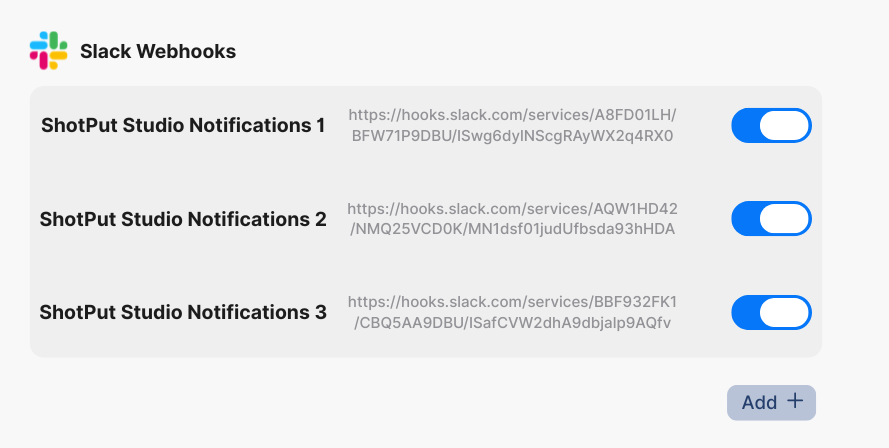
Instead of walking station to station, supervisors can monitor verified jobs, cancellations, and errors in real time from a single thread.
Learn how to connect to Slack via Webhooks
Extending the Workflow Beyond the Machine
This update is all about removing friction between systems and people. Slack Webhooks provide visibility across multiple machines allowing ShotPut Studio to function as part of a broader, connected production environment, one where verification, monitoring, and delivery work in concert rather than in isolation.
Ready to give it a try? If your ShotPut license is active and under maintenance, the update is already waiting for you. Just open the app and select ‘Check for Updates.’
If your maintenance has expired, updating is easy. Log in to your account, navigate to View Licenses > Update, and choose either a one-time 12-month update plan ($70 for Pro | $120 for Studio) or enroll in automatic updates ($59/year for Pro | $99/year for Studio) to always stay current.